How to use Multiple URL Opener
Eight short steps, in order. Each one has a small animation. Follow them once and you will not need the guide again.
Step 1
Pin it to the toolbar
Chrome hides new extensions behind the puzzle icon. Pin it once and it stays one click away.

Extensions
Multiple URL Opener - Click the puzzle-piece Extensions icon at the right of the address bar.
- Find Multiple URL Opener and click the pin next to it.
- Click the icon, or press Alt + M, to open it.
Step 2
Open a list of links
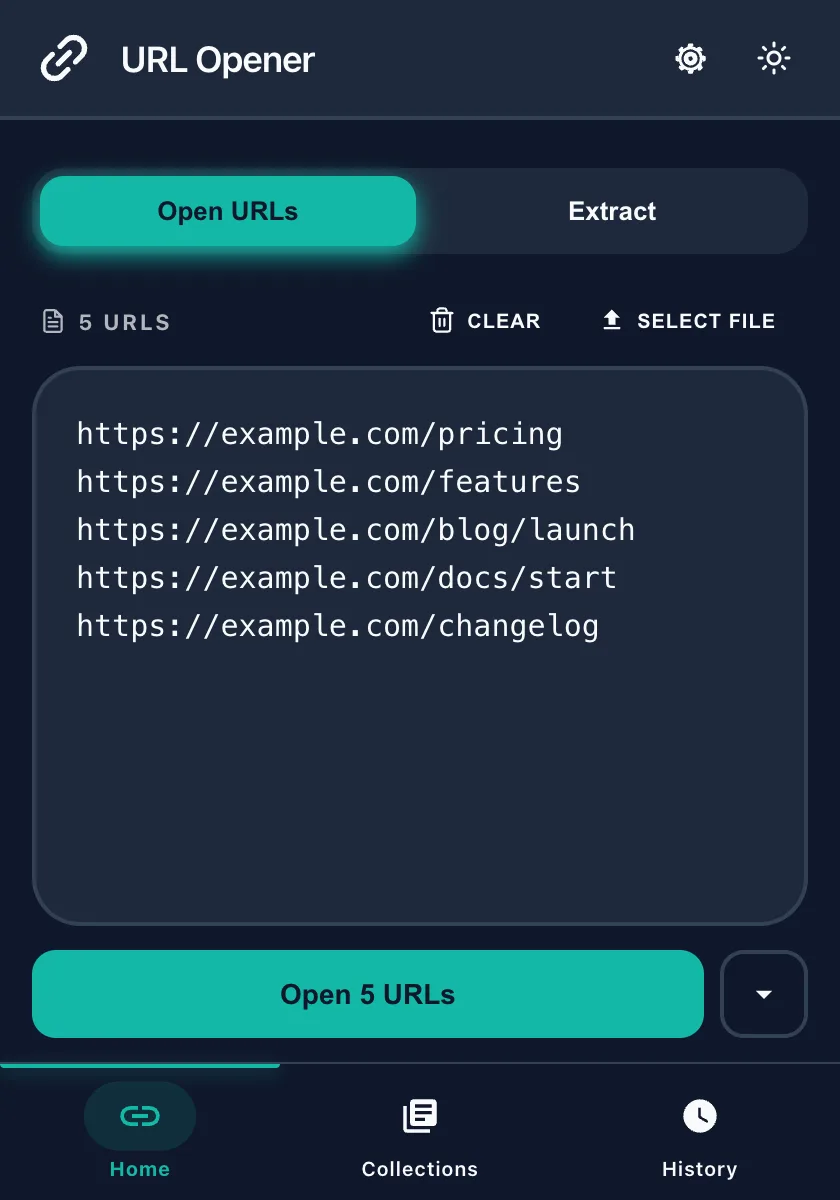
- Open the extension. You land on the list editor.
- Paste your links, one per line. A column copied from a spreadsheet works as it is. You can also drag a .txt file onto the list, or use Select file.
- Press Open. Every link opens in its own tab. A link without
httpgetshttps://added.
Step 3
Choose where the tabs open
The small arrow next to Open opens a menu with three choices. Set a default in Settings if you always want the same one.
- Normal. Tabs open in the window you are in.
- Tab Group. Tabs open together in one group titled URL Opener. Chrome asks once for the tab groups permission. If you say no, the links still open as normal tabs.
- New Window. Tabs open in a fresh window. Close it and the whole batch is gone.

Step 4
Keep big lists calm
Opening a hundred links at once can freeze Chrome. Three switches in Settings keep it under control.
- Lazy load tabs. Tabs are created at once, but a page loads only when you switch to it.
- Delay between URLs. A pause in milliseconds between tabs.
- Randomize order. Shuffle the list before opening.

Step 5
Grab links from any page
No list yet? Collect the links from the page you are on.
- Right-click the page and choose Grab Links, or press Alt + G. The Extract tab opens.
- Narrow the list with Include and Exclude words such as
instagram.com. Duplicates and junk links like login and share are already hidden. Untick the smart junk filter to see them. - Press Copy to Clipboard, Open URLs, or Save as collection.
Link Grabber in detail → · Extract URLs from text → · Linkclump alternative →
Step 6
Reuse your lists
- History keeps every list you opened. Reopen one with a click.
- Collections are saved sets of links with a name. You can keep up to 3, and import or export them.
Step 7
Make it look like yours
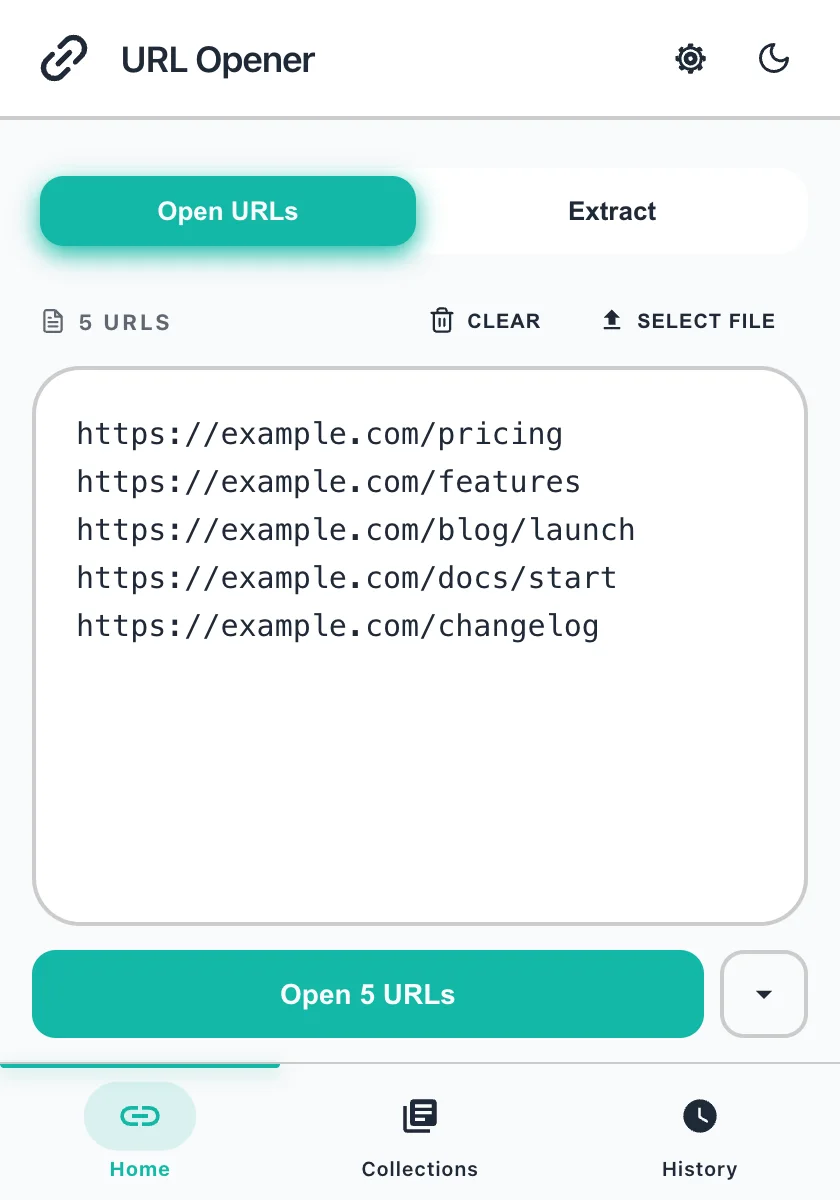
Light, dark, or one of six retro presets. Set your own colors and switch the language in Settings.
Light Default light
Pick a theme to preview it.
Step 8
Keyboard shortcuts
| Keys | What it does |
|---|---|
| Alt + M | Open Multiple URL Opener |
| Alt + G | Grab the links on the current page |
Change them at chrome://extensions/shortcuts.
Questions
Do I have to pin the extension?
No. It works from the Extensions menu too. Pinning keeps the icon in the toolbar, so it is one click away.
Where do my lists go?
Nowhere. Your lists, history and collections stay in the extension on your device. The extension has no analytics.
How do I change the keyboard shortcuts?
Open chrome://extensions/shortcuts in Chrome and set the keys you prefer for Multiple URL Opener.
Why can the Link Grabber not read some pages?
Chrome does not let extensions read system pages such as chrome:// pages, extension pages and the Chrome Web Store.
More free Chrome extensions from the same team
Free, focused browser tools from the same developer.
 Free
Free  Free
Free  Free
Free  Free
Free  Free
Free  Free
Free  Free
Free  Free
Free  Free
Free  Free
Free